
What Is an AI Skill? How to Install Skills from sundae_bar
By sundae_bar
Skills started as a power-user feature for coding agents. Now they are showing up in tools like Claude, ChatGPT, Codex, and API-based agent setups.
That matters because a skill is not just a long prompt. It is a reusable workflow bundle: instructions, examples, and sometimes scripts or reference files that teach an AI system how to do one job well, every time.
On sundae_bar, each skill page gives you three ways to install a skill:
- download the SKILL.md file
- install via CLI
- install via curl
And if your destination is Claude, you can take that downloaded file or bundle and add it directly in Claude’s Skills settings.
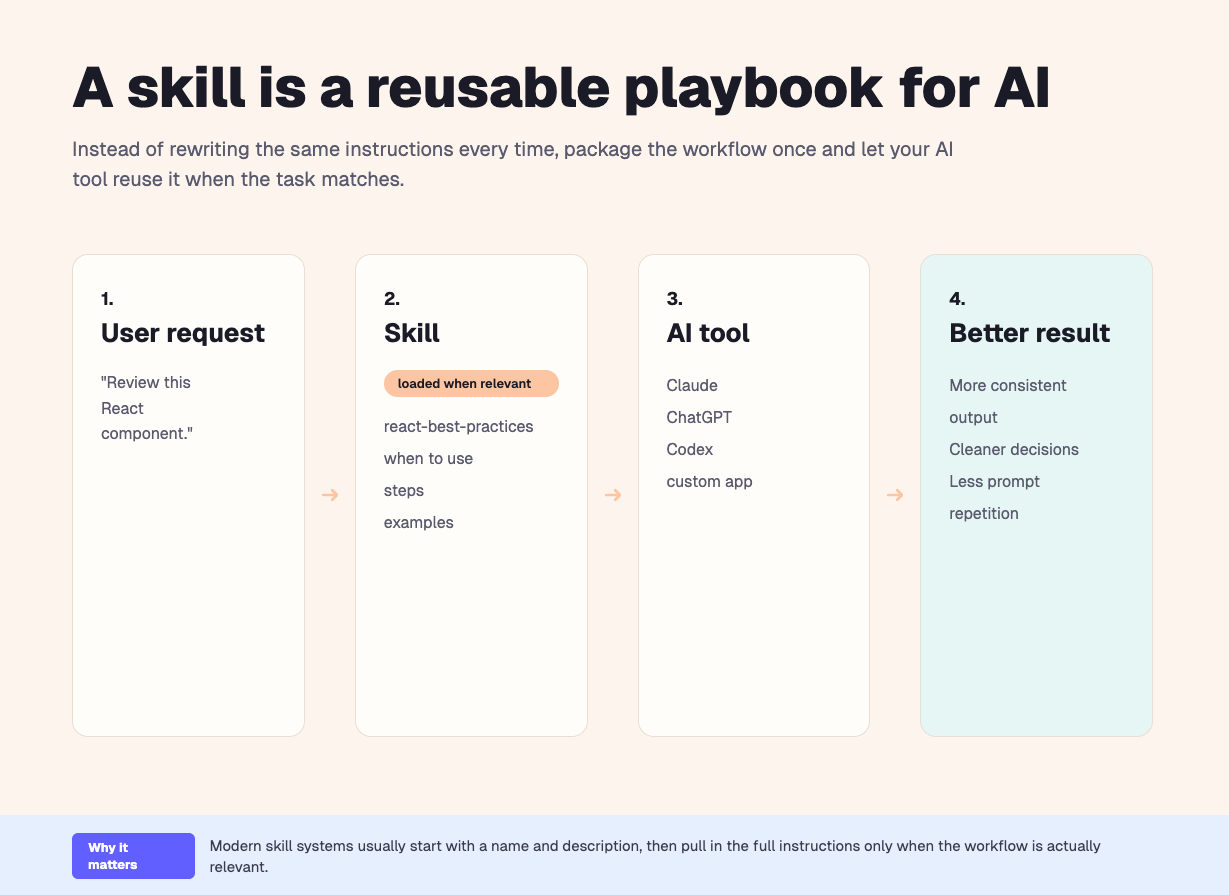
Diagram showing a prompt flowing through a skill before reaching an AI agent or app
The simple explanation
Think of a skill as a playbook for AI.
A prompt says, “Do this task for me right now.”
A skill says, “Whenever this kind of task comes up, here is the right way to do it.”
That is why skills matter. Instead of rewriting the same instructions over and over, you package the workflow once and reuse it.
A good skill can include:
- when it should trigger
- step-by-step instructions
- examples of good output
- reference material
helper scripts or templates, if needed
Why skills matter
Skills turn scattered prompting into reusable systems.
They make AI work more consistent, reduce prompt bloat, and make it easier to share workflows across a team. Modern skill systems also load the full instructions only when the task matches, so you can keep rich workflows available without stuffing every conversation with giant prompts.
Just as important, skills are no longer stuck in terminal-only tools. They are now showing up in chat products, app experiences, and API runtimes, which means the same workflow can increasingly move across tools instead of living in one silo.
What is actually inside a skill?
At minimum, a skill usually has a SKILL.md file. That file is the manifest and the main instruction set.
Some skills stop there. Others also include supporting files such as references/ for docs, scripts/ for executable helpers, and assets/ for templates or resources.
This is also why sundae_bar offers more than one install option. If a skill includes helpers, references, or other support files, the CLI or curl option is usually the better choice because it can pull the full bundle into the right place for you.
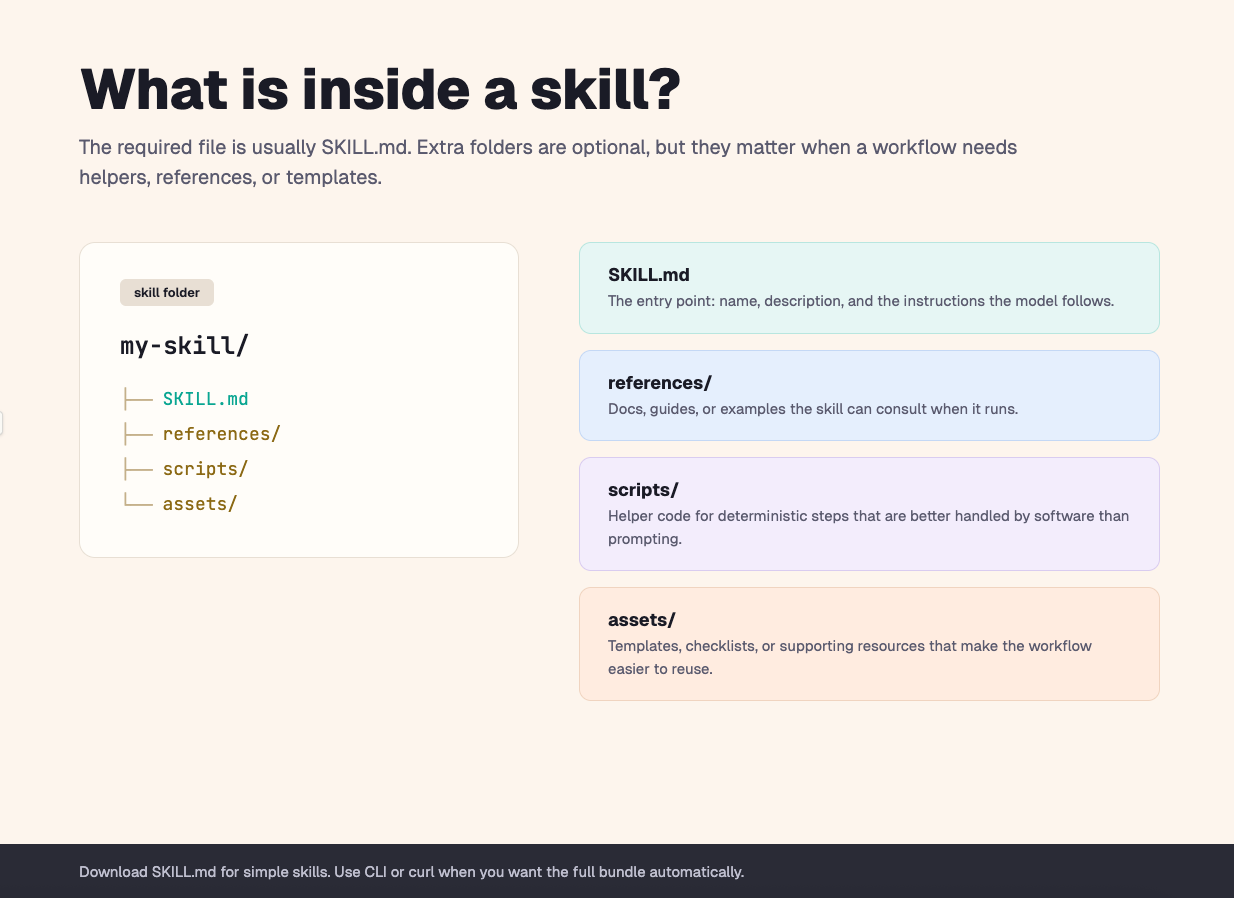
Illustration of a typical skill folder with SKILL.md, references, scripts, and assets
Skills are not just for coding agents anymore
A lot of people first met skills through tools like Claude Code and Codex. That is still a big part of the ecosystem. But the format has moved beyond that.
OpenAI describes skills in ChatGPT as reusable, shareable workflows that can bundle instructions, examples, and code. OpenAI also supports skills in Codex and the API. Anthropic describes skills similarly and supports them in Claude, Claude Code, and the API. Anthropic’s docs also show skills working inside products like Claude for Excel, where relevant skills can apply automatically while you work.
OpenAI and Anthropic both describe their skills as compatible with the open Agent Skills standard, which is why moving the same workflow across tools is becoming more realistic.
Real examples from the sundae_bar directory
Skills are not all the same. Some are format helpers. Some are workflow playbooks. Some are technical guardrails.
- PDF / DOCX / XLSX / PPTX — file creation and transformation workflows
- React Best Practices — better frontend review and refactor decisions
- Stripe Webhooks — signature verification, retries, and idempotency patterns
- Supabase Postgres Best Practices — performance and security guidance
- Incident Response Playbook Creator — a structured security playbook workflow
- Semgrep Security Scan and Insecure Defaults Detection — AppSec-focused skills
- Terraform Best Practices and MCP Builder — infrastructure and platform workflows
That variety is the point. A skill is not defined by the domain. It is defined by whether it captures a repeatable workflow clearly enough for an AI system to reuse.
How to install a skill from sundae_bar
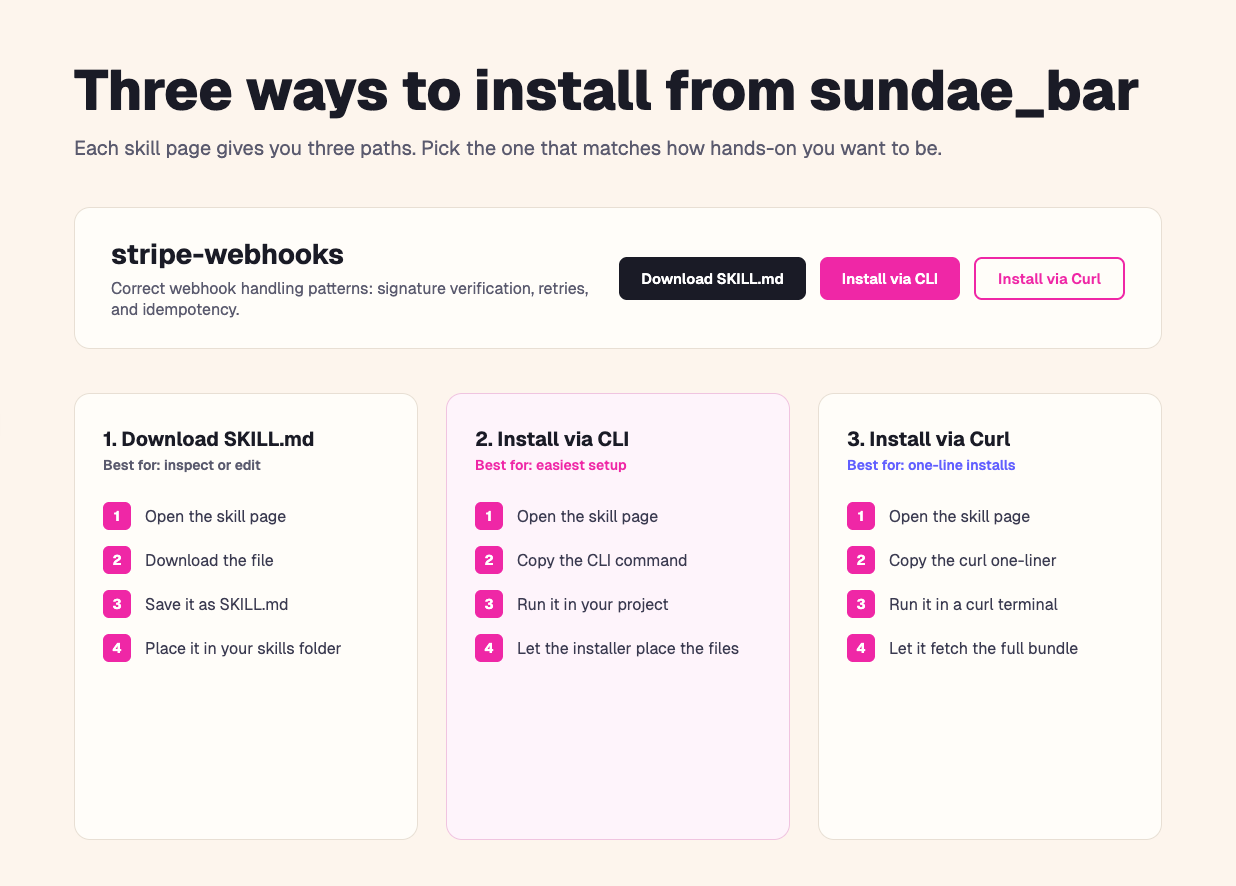
Illustration of a skill page with buttons for Download SKILL.md, Install via CLI, and Install via Curl
Option 1: Download the SKILL.md file
Use this when you want to inspect the skill yourself, edit it, or manually install a simple single-file skill.
Steps:
Open the skill page on sundae_bar.
Click Download SKILL.md.
Create a folder named after the skill in the location your AI tool expects.
Save the file as SKILL.md inside that folder.
Restart or refresh your AI tool if needed.
Test the skill with an explicit request.
Best for: simple skills, manual installs, and custom edits.
Important: if the skill depends on extra scripts, references, or assets, downloading only the SKILL.md file may not give you the full experience. In that case, use the CLI or curl option instead.
Option 2: Install via CLI
Use this when you want the easiest setup and do not want to place files manually.
Steps:
Open the skill page on sundae_bar.
Click Install via CLI.
Copy the command shown on the page.
Run it in the project or workspace where you want the skill installed.
Let the installer place the skill files for you.
Test the skill in your AI tool.
Best for: most users, project installs, and multi-file skills.
Option 3: Install via curl
Use this when you want a fast copy-paste install or when you are scripting setup in docs, onboarding flows, or dev environments.
Steps:
Open the skill page on sundae_bar.
Click Install via Curl.
Copy the one-line command.
Paste it into a terminal that supports curl.
Run the command and let it fetch and place the skill automatically.
Test the skill in your AI tool.
Best for: one-line setup, shell-heavy workflows, and automation.
How to add a sundae_bar skill directly into Claude
If Claude is where you actually want to use the skill, you do not need to think in terminal folders first.
Download the skill from sundae_bar, then add it straight into Claude.
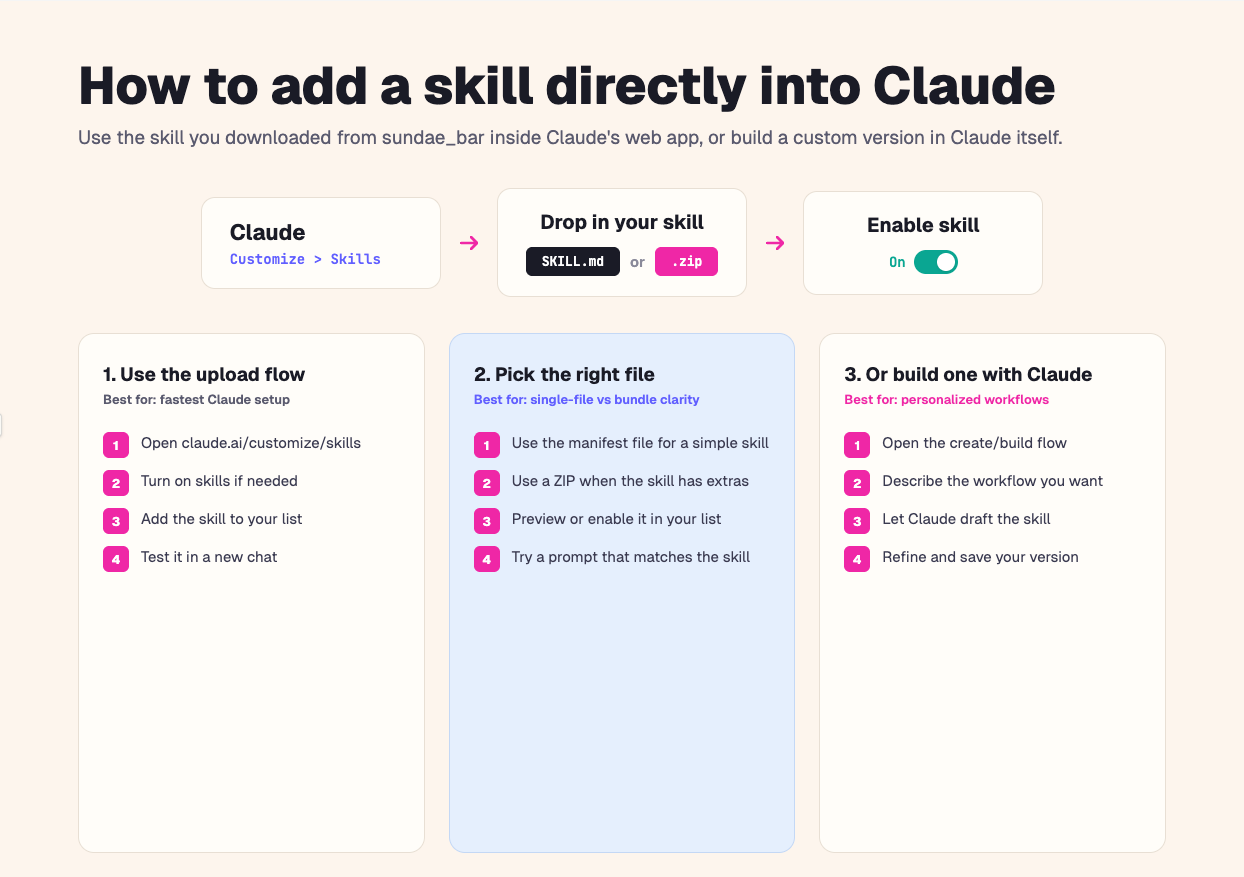
Illustration of the Claude web flow: open Customize > Skills, drop in a skill file or zip, then enable it
Direct upload in Claude
Use this when you want the skill available in Claude’s web app.
Steps
Open Claude and go to Customize → Skills.
Add your skill to Claude.
For a simple skill, drag in the skill manifest file you downloaded from sundae_bar.
For a bundled skill, drag in a ZIP that contains the skill manifest file.
Enable the skill in your Skills list.
Start a new chat and give Claude a task that clearly matches the skill.
Best for: non-technical users, fast setup, and anyone who wants to use a skill in Claude without touching install paths.
Build a personalized skill with Claude
You can also open Claude’s skill builder flow and have Claude help you create a personalized skill.
That is useful when:
- you want to start from a sundae_bar skill and adapt it to your own workflow
- you want Claude to help rewrite the description or examples
- you want a custom version that only you or your team will use
A simple approach is:
Start with a skill from sundae_bar.
Open the builder flow in Claude.
Describe what you want to change.
Save the personalized version and test it.
Where should a downloaded skill go?
This depends on the tool you are using.
If you are using Claude on the web, you usually do not need a manual folder path. Upload the file or ZIP in Customize → Skills.
If you are using Claude Code, Codex, or another file-based skill system, use the tool’s expected folder.
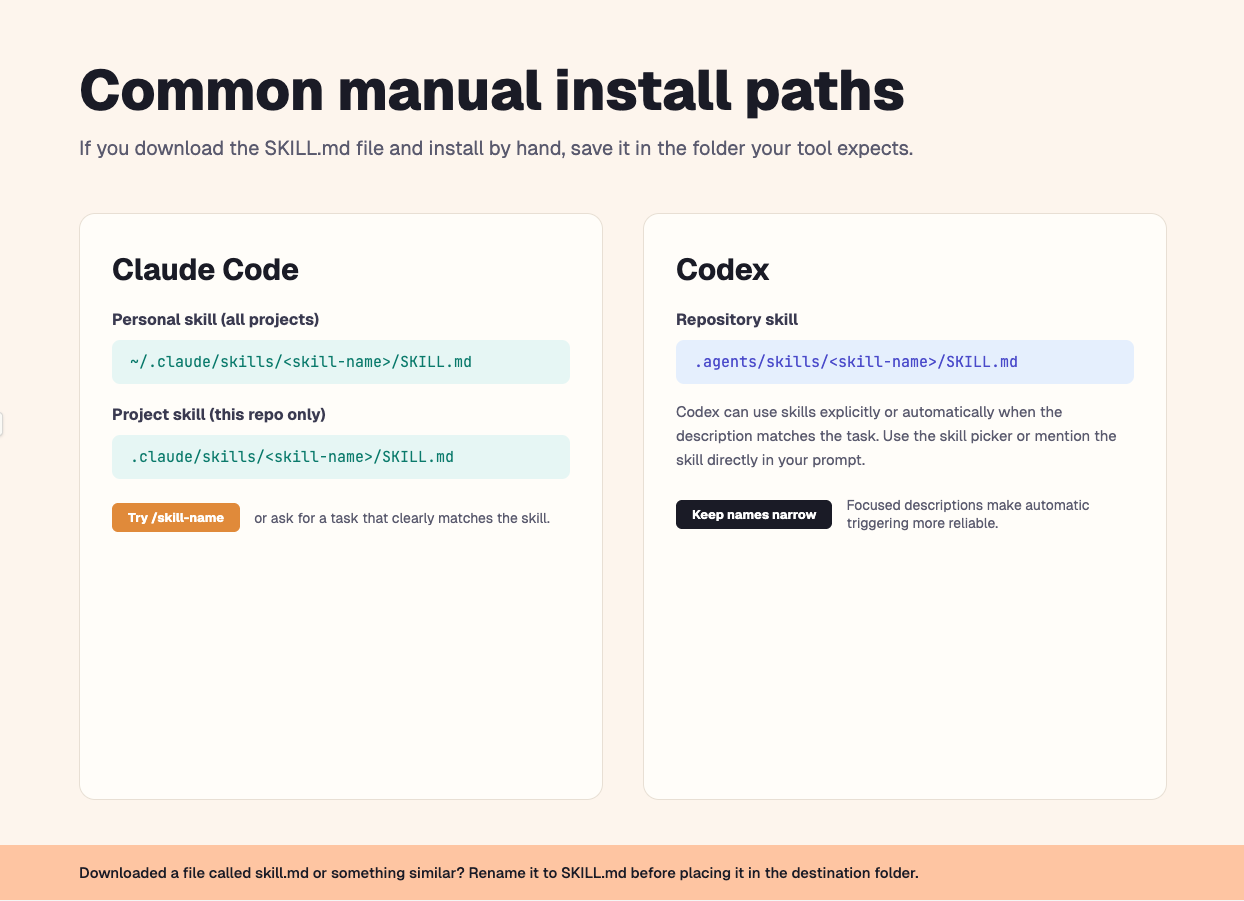
Claude Code
For a personal skill available across projects:
~/.claude/skills/<skill-name>/SKILL.md
For a project-only skill:
.claude/skills/<skill-name>/SKILL.md
Codex
For a repository skill:
.agents/skills/<skill-name>/SKILL.md
If you are using another tool that supports the open Agent Skills format, follow that tool’s documented skill location or import flow.
How to test a skill
A quick test goes a long way.
- ask the tool to use the skill directly by name
- ask for a task that clearly matches the skill description
- check the tool’s skill list or picker if it has one
Example prompts:
- Use the pdf skill to combine these pages into one clean PDF.
- Use react-best-practices to review this component.
- Use incident-response-playbook-creator to draft a phishing response playbook.
- Use stripe-webhooks to review my webhook handler for retry and signature issues.
Skills vs prompts vs MCP
- Prompt: a one-time instruction for one conversation
- Skill: a reusable workflow bundle for a specific kind of task
- MCP: a way to connect an AI system to tools, services, or external data
In plain English: MCP gives the AI access. A skill gives the AI procedure.
A few best practices
- Start with two or three skills you will actually use.
- Prefer narrow skills over giant “do everything” skills.
- Read the SKILL.md file before installing from any source you do not know well.
- Use manual download when you want to inspect or customize.
- Use CLI or curl when you want the full bundle with the fewest setup mistakes.
The takeaway
A skill is a reusable playbook for AI.
It can be as simple as one well-written SKILL.md file or as rich as a bundle of instructions, references, and scripts. What makes it valuable is repeatability.
That is why skills matter now. As AI tools move from demos into real workflows, people need a better way to package know-how, standards, and repeatable procedures. Skills do exactly that.
The sundae_bar skills directory gives you a practical place to discover those workflows and install them quickly — whether you want the raw file, a CLI flow, or a one-line curl install.
Further reading
- OpenAI Help: https://help.openai.com/en/articles/20001066-skills-in-chatgpt
- OpenAI Developers (Codex): https://developers.openai.com/codex/skills
- OpenAI Developers (API): https://developers.openai.com/api/docs/guides/tools-skills
- Anthropic Help: https://support.claude.com/en/articles/12512176-what-are-skills
- Anthropic Docs (Claude Code): https://code.claude.com/docs/en/slash-commands